

Wi-Fi 6 Router Upgrade: Is It Worth It in 2026?
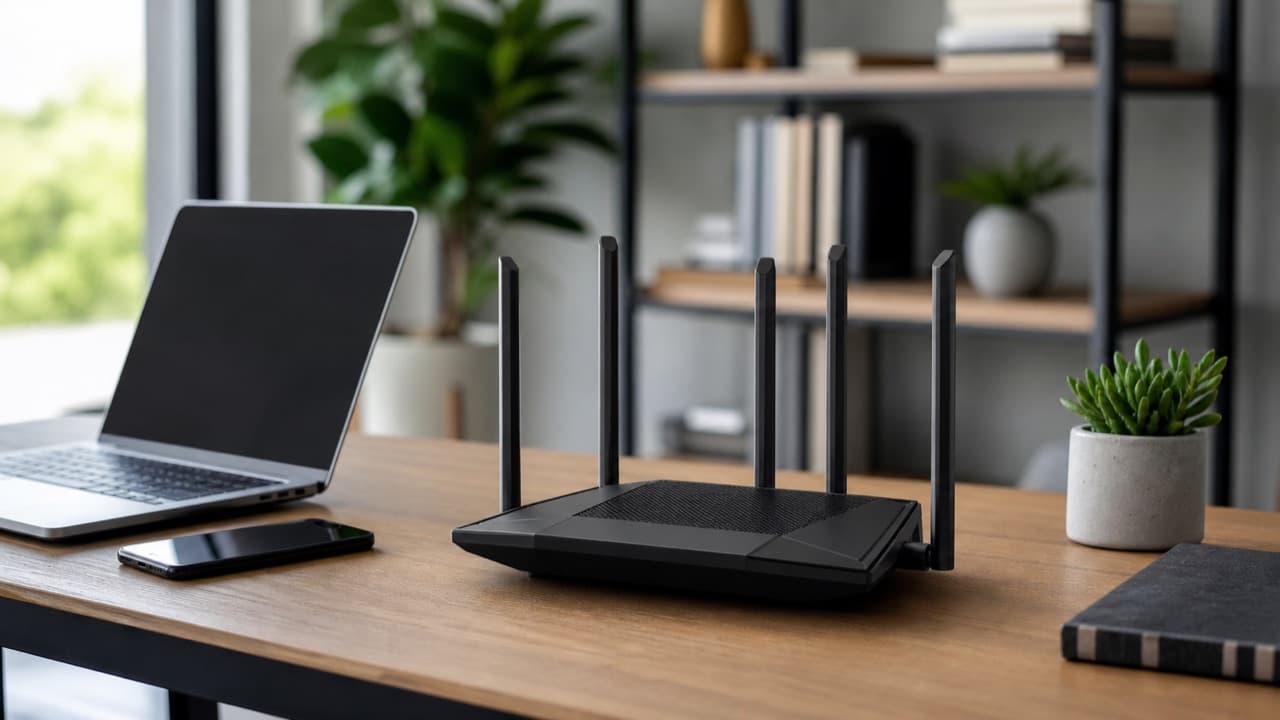
A Wi-Fi 6 router upgrade is worth it if your current router is Wi-Fi 5 (802.11ac) or older and your home has many connected devices, video calls that stutter at busy times, or an internet plan faster than your Wi-Fi can deliver. If your router already supports Wi-Fi 6, or your plan is slow, a new router alone will not change much. This guide is for households deciding whether to replace an aging or ISP-supplied router, and whether to stop at Wi-Fi 6 or step up to Wi-Fi 6E or Wi-Fi 7 now that both are widely available.
Key takeaways
- Wi-Fi 6 (802.11ax) mainly improves performance when many devices share the network, through OFDMA, uplink and downlink MU-MIMO and Target Wake Time.
- Your devices must also support Wi-Fi 6 to get its full benefit; older devices still connect, just at their own standard.
- The AX number (AX1800, AX3000) is the sum of theoretical maximums across bands, not the speed any single device will see.
- Wi-Fi 6E adds the less crowded 6 GHz band; Wi-Fi 7 adds wider channels and multi-link operation. Both cost more and need compatible devices to help.
- Coverage problems in a large or multi-floor home are usually solved by mesh or wired access points, not a more powerful single router.
What Wi-Fi 6 actually improves
Wi-Fi 6 is not mainly about a faster top speed for one laptop. It is about efficiency when the network is busy, which is what most homes now are: phones, laptops, TVs, consoles, cameras, smart plugs and speakers all competing for airtime.
- OFDMA splits each channel into smaller slices so the router can serve several devices in one transmission, reducing waiting time for small bursts of data like smart-home traffic and messaging.
- MU-MIMO in both directions lets the router talk to several devices at once on download and upload. Wi-Fi 5 supported it only on download.
- 1024-QAM packs more data into each signal at close range, raising peak speeds by roughly a quarter over Wi-Fi 5 under good conditions.
- Target Wake Time schedules when devices wake to talk, which can help battery life on supported phones and smart-home gadgets.
- BSS coloring helps the router ignore neighboring networks on the same channel, which matters in apartments.
- WPA3 security is required for Wi-Fi 6 certification, giving stronger protection against password-guessing attacks.
The upshot: fewer slowdowns when the whole family is online, more consistent video calls and less lag during peak hours. Range improves only modestly; walls and distance still win.
Wi-Fi 6 vs Wi-Fi 6E vs Wi-Fi 7
| Standard | Bands | Main advantage | Best for |
|---|---|---|---|
| Wi-Fi 6 (802.11ax) | 2.4 GHz and 5 GHz | Efficiency with many devices, WPA3 | Most homes upgrading from Wi-Fi 5 or older on a budget |
| Wi-Fi 6E | Adds 6 GHz | Clean, wide 6 GHz channels with little interference | Apartments with crowded airwaves; recent phones and laptops |
| Wi-Fi 7 (802.11be) | 2.4, 5 and 6 GHz | 320 MHz channels, multi-link operation, lower latency | Multi-gig internet plans, heavy local transfers, future-proofing |
The 6 GHz band is fast and uncrowded but has shorter range and penetrates walls poorly, so it works best in the same or next room as the router or access point. Wi-Fi 7’s headline gains also depend on 6 GHz and on clients that support it. If most of your devices are a few years old, a good Wi-Fi 6 router delivers nearly all the benefit you can use today at a lower price. If you are buying flagship phones and laptops and have a plan above 1 Gbps, a Wi-Fi 7 router makes more sense than stopping at Wi-Fi 6.
How to read router speed labels
Labels like AX1800 or AX3000 add up the maximum theoretical link rates of each band. AX1800 is typically about 574 Mbps on 2.4 GHz plus about 1,201 Mbps on 5 GHz. AX3000 usually doubles the 5 GHz figure by supporting 160 MHz channels. No single device gets the total, and real throughput after overhead and walls is much lower than the link rate.
Use the label to compare routers in the same family, then size by need:
- Internet plan up to about 500 Mbps: an AX1800-class router is usually enough for a small or medium home.
- Plan around 1 Gbps: look for AX3000 or above with 160 MHz support, and make sure your phones and laptops support 160 MHz to get close to plan speed wirelessly.
- Plan above 1 Gbps: you need a router with a 2.5 Gbps (or faster) WAN port. A gigabit WAN port caps you at about 940 Mbps of real throughput no matter what the Wi-Fi label says.
Also count the LAN ports. Wired connections for a desktop, console, TV or work dock free up airtime for everything else.
Single router vs mesh
A single router placed centrally and high usually covers an apartment or a compact single-floor home. Larger homes, multiple floors, brick or plaster walls and detached offices are where mesh systems help. A mesh uses two or more nodes that share one network name and hand devices between them.
Mesh nodes talk to each other either wirelessly or over Ethernet. Wired backhaul is far better when you can run a cable or use existing Ethernet wall jacks, because wireless backhaul spends some of the Wi-Fi capacity relaying traffic. Tri-band mesh systems reserve a band for backhaul to soften that penalty. Place wireless nodes roughly halfway between the router and the weak spot, not in the dead zone itself.
Setting up the new router without headaches
- Check your ISP equipment. If your modem is a gateway with its own router and Wi-Fi, either put it in bridge mode or switch off its Wi-Fi to avoid double NAT and two networks fighting for channels. Your ISP’s support pages or app usually explain how.
- Reuse your old network name and password if you want devices to reconnect automatically. Smart-home devices that only support 2.4 GHz and older security may need a compatibility setting; many routers offer a WPA2/WPA3 transition mode.
- Place it well: central, elevated, in the open, away from microwave ovens, fish tanks and metal cabinets.
- Update firmware on day one, change the admin password, and turn on automatic updates if offered.
- Test at the spots you use most, at a busy time of day, rather than right next to the router.
If your work setup depends on a stable connection, our guide to the smart accessories every remote worker needs covers the rest of the desk, and our USB-C hub buying guide explains how to add a wired Ethernet port to a laptop that lacks one.
Mistakes to avoid
- Upgrading the router when the plan is the bottleneck. Run a wired speed test at the modem first; if it matches your slow Wi-Fi, the router is not the problem.
- Expecting old devices to speed up. A Wi-Fi 5 laptop stays a Wi-Fi 5 laptop, though it may still benefit from a less congested network.
- Buying the biggest AX number for a small apartment. You pay for capacity your devices cannot use.
- Hiding the router in a cabinet or basement. Placement often matters more than the model.
- Running a gigabit-plus plan through a gigabit WAN port. Check port speeds before buying.
- Ignoring the support life. Routers need security updates; prefer brands with a clear record of firmware support.
Which upgrade fits your home
Pick an AX1800 to AX3000 Wi-Fi 6 router if you live in an apartment or small home, your plan is up to about 1 Gbps and most devices are a few years old. Pick a Wi-Fi 6 or Wi-Fi 6E mesh system if you have dead zones across floors or a long layout. Pick Wi-Fi 6E if your building is crowded with neighbors’ networks and your recent devices support 6 GHz. Pick Wi-Fi 7 with a multi-gig WAN port if you pay for more than 1 Gbps or want the router to last through several device upgrades. Explore networking and desk gear in the electronics and accessories category, and if you are weighing a refurbished router, read our open-box vs new electronics guide first.
Frequently asked questions
Is it worth upgrading to a Wi-Fi 6 router?
Yes, if your current router is Wi-Fi 5 or older and you have many devices or a fast plan. The biggest gain is smoother performance when lots of devices are online at once. If your plan is slow or your router already supports Wi-Fi 6, the benefit is small.
Will a Wi-Fi 6 router make my internet faster?
It cannot exceed your internet plan, but it can deliver more of that speed to more devices, especially at busy times and to newer devices. Run a wired speed test first to see whether Wi-Fi is really the bottleneck.
Do my devices need to support Wi-Fi 6?
To get the full benefit, yes. Older Wi-Fi 4 and Wi-Fi 5 devices still connect and work normally, and they may see some improvement from a less congested network, but not the new features.
Should I buy Wi-Fi 6E or Wi-Fi 7 instead of Wi-Fi 6?
Choose 6E if neighboring networks crowd your airwaves and your devices support 6 GHz. Choose Wi-Fi 7 if you have a multi-gig plan or want long-term headroom. For most homes with older devices and plans under 1 Gbps, Wi-Fi 6 is the value pick.
Do I need a mesh system or one router?
One well-placed router usually covers an apartment or a compact single-floor home. Larger, multi-story homes or thick walls benefit from mesh, ideally with nodes connected by Ethernet.
Shop Tech & Gadgets
View all →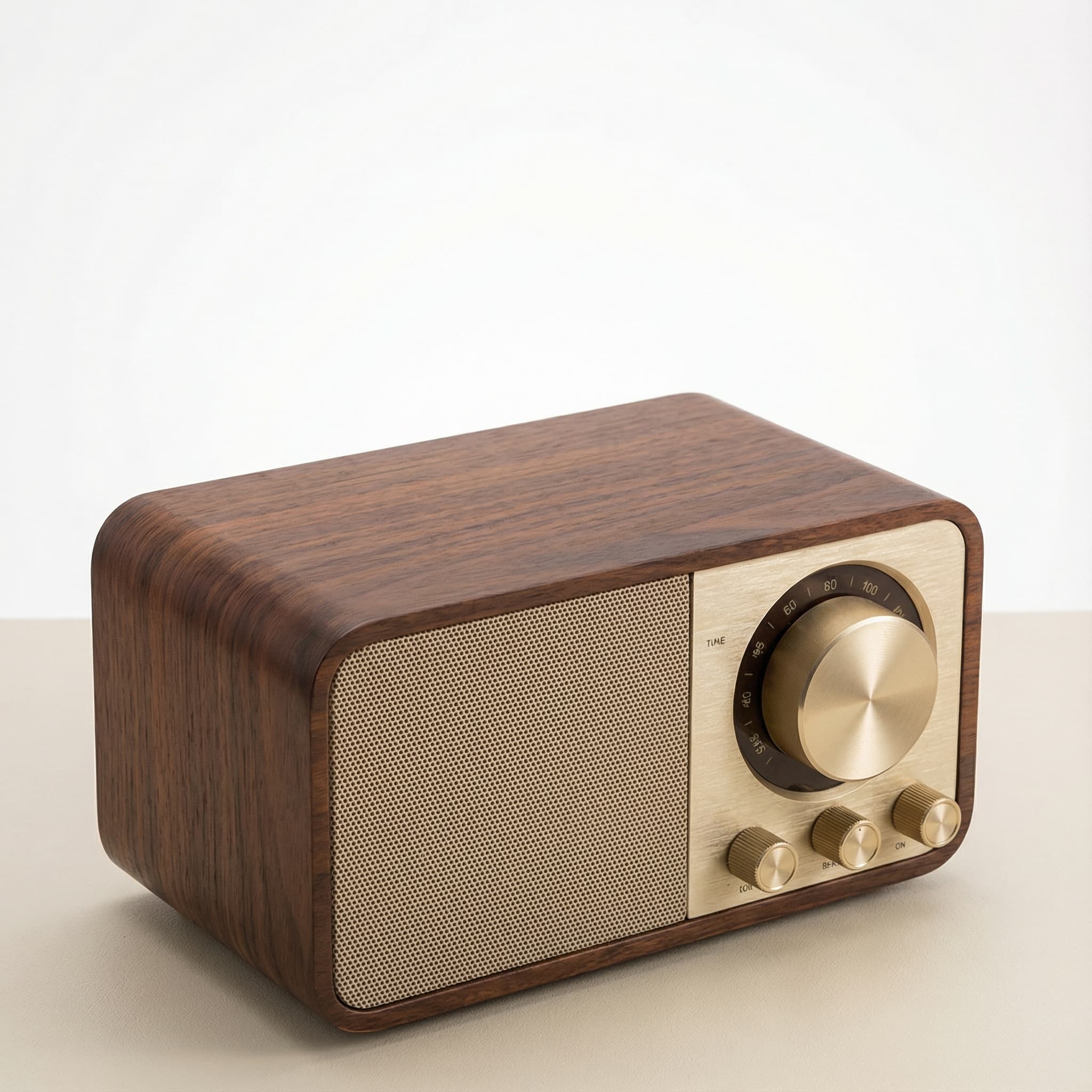 Sale
SaleRetro Wood-Cabinet Bluetooth Speaker with FM Radio
In stock · Ships in 7–21 business days

Ortizan X10 Portable Bluetooth Speaker with RGB Lights
In stock · Options available · Ships in 7–21 business days

Ohayo X10 Max Bluetooth Speaker with Bass Boost and Lights
In stock · Options available · Ships in 7–21 business days
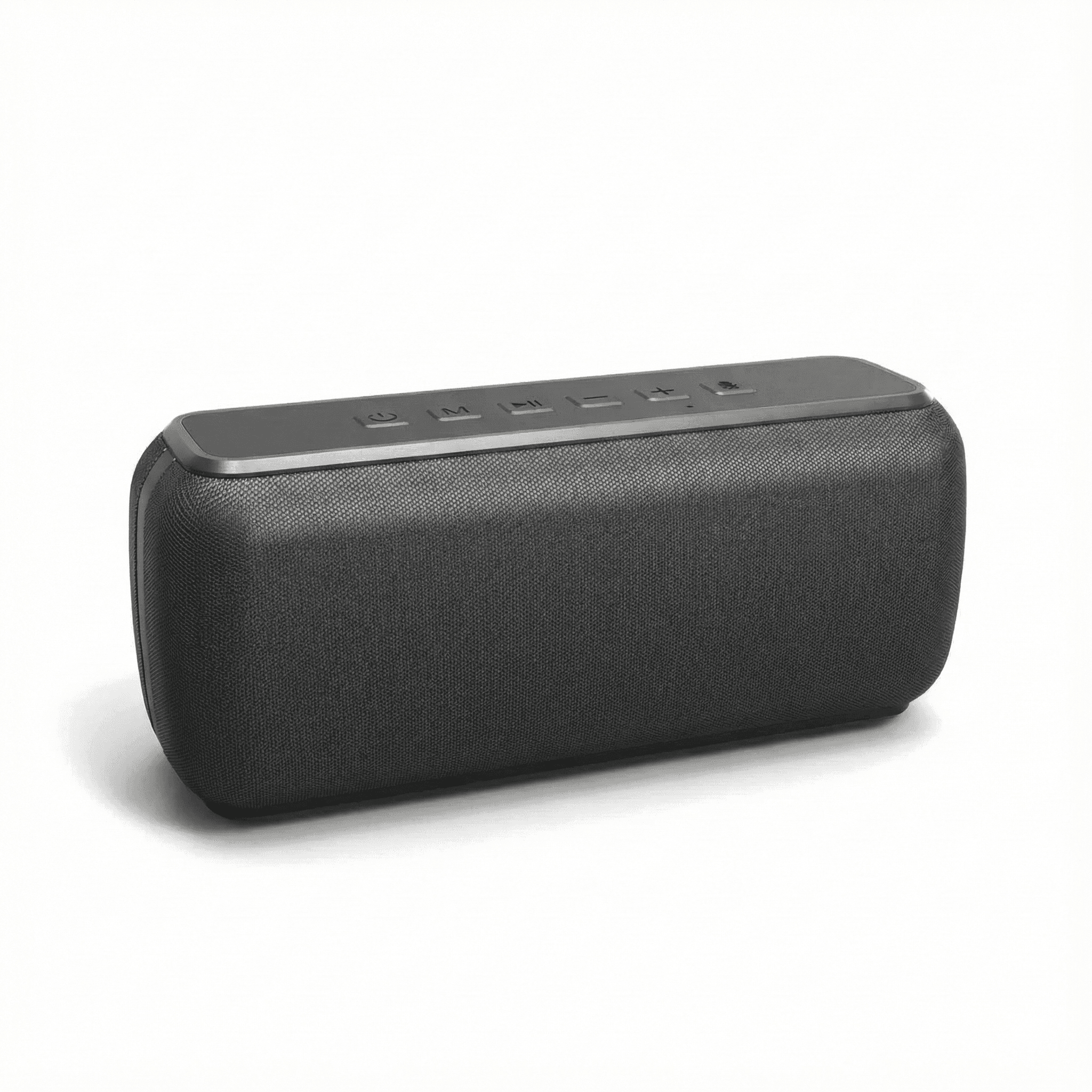
Xdobo X8 II Portable Bluetooth Speaker with Power Bank
In stock · Options available · Ships in 7–21 business days
Continue reading
 Tech & Gadgets
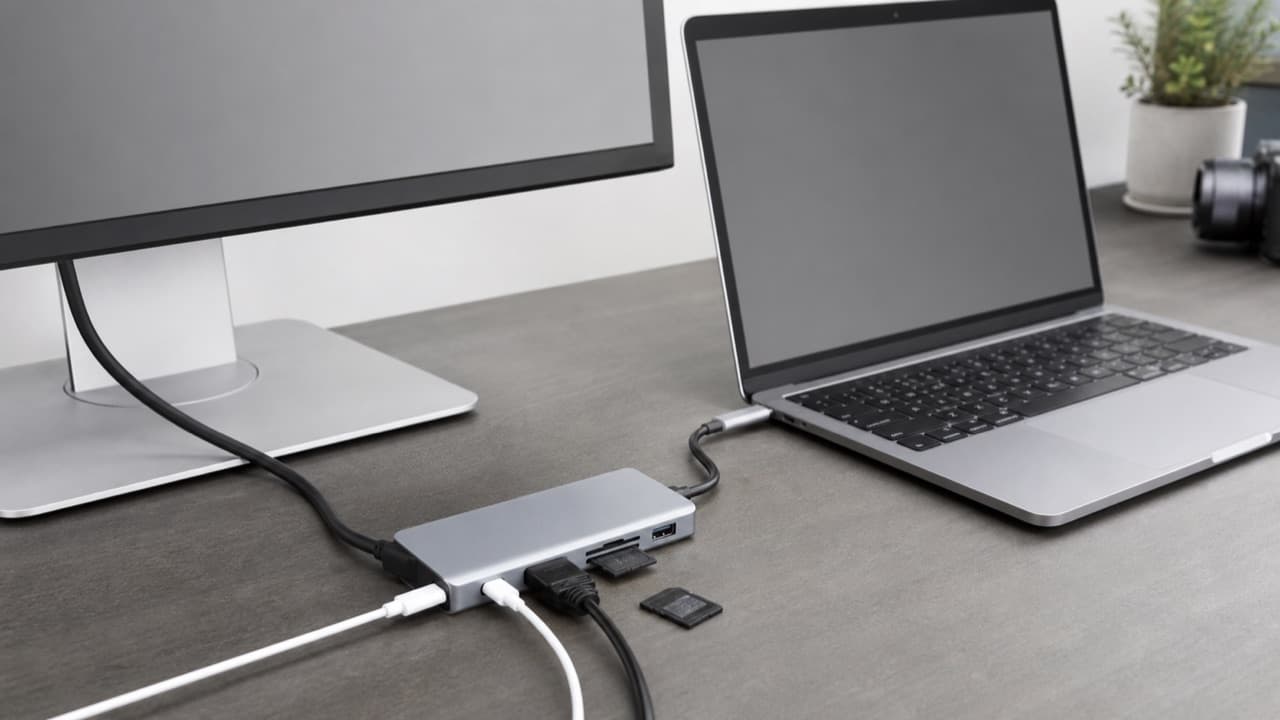
USB-C Hub Buying Guide: Ports, Video and Power Explained
USB-C hub buying guide: check what your laptop port supports, read data speed labels, size power pass-through and match the video and ports you need.
 Tech & Gadgets
Smart Plug Vacation Mode: Set Up Safe Away Schedules
Smart plug vacation mode explained: how to set realistic away schedules, which appliances never belong on a smart plug, and how to plan for outages and hacks.
 Tech & Gadgets
Mechanical Keyboard Switch Types: Linear, Tactile, Clicky
Mechanical keyboard switch types compared: linear, tactile, clicky, optical and Hall effect, with actuation force, travel, noise and hot-swap fit.